
Who can use this feature: All You Can Eat plans, or Starters/Mains with the Reservation add on
 Users with access to Administration Settings
Jump to:
Introduction
The Customer App Reservations (CIC) allows customers to submit reservation requests directly through the Kobas Customer App (CIC).
This provides a simple, integrated alternative to third-party reservation platforms, reducing friction for customers and giving you full control within Kobas.
This feature is being released as a beta, and we welcome feedback as we continue to develop and enhance its functionality.
Staff will require the appropriate permissions to view and manage reservations for their own or all venues.
Setting up venues
Follow the steps below to activate reservations on the Customer Apps reservations functionalitiy:
- Navigate to Administration > Integrations Settings > Reservations
- Activate the Reservations checkbox (this will activate the new webpage on the Customer App). If you cannot access this checkbox, please contact support.
- Next, set up the venues reservations settings, head to Administration > Venues Settings > Edit Venue Settings > Sales & Marketing Tab > Marketing Section. Allow the setting Include Venue on the Customer Interaction Centre
- Then, head to Administration > Venues Settings > Edit Venue Settings > Reservations Tab
- Fill out the necessary fields.
- Check Enabled For Venue box
- Save & Exit
- The venue will be visible on http://your.domian.co.uk/reservations
Below explains each field:
- Intro Text: Enter the text in this field what you like to appear at the top of the page, eg, an email address or number for your bookings teams
- Max Covers: Set the maximum table size that customers can request using the Customer App reservation system
- Min Lead Time: The minimum number of hours before a reservation start time that a reservation can be requested (default is 1 hour).
- Reservation Duration: Reservations requested by customers via the Customer App will be created with this duration, in minutes.
- Reservations Email Recipients: Enter a comma-separated list of email addresses to send reservation notification emails to. If this field is left blank, no emails will be sent.
- Availability Times: Are used to determine when customers can request to book the venue. Availability times must be discretely defined, and cannot overlap. These will appear in the drop down for customer to choose from.
What Customers see:
- A new “Reservations” page in the Customer App
- Venue selection
- Request form with:
- Date picker (restricted to the venues availability)
- Time slots
- Guest count
- Contact details
- Mobile number
- Notes field for special requests, allergens etc
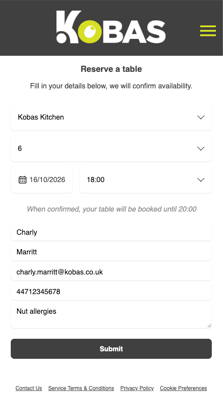
When a customer submits the form, a new reservation will be created in Cloud, read more on Managing reservations and deposits in Cloud.
Further reading:
Reservations and deposits on EPoS
Reservations and deposits on the day
Other ways to pay