
Who can use this feature: All Accounts
 Users with access to Hardware permissions..
Jump to:
- Introduction
- Using card machines without integration
- Universal card machine settings
- Using a card machine integration
- Troubleshooting
Introduction
This page explores how to set up and configure card machines (also known as PDQ's) in your account.
In order to access the settings required to integrate your Card Machine, you will need to be of a User Permission Level that includes the permissions:
- Administration > Venues (Manage) and
- Administration > Hardware Management (Manage).
You can use any Card Machine and Payment Provider without integration. This means your team will need to enter the amount of the sale into the card machine and mark as paid on Kobas once the payment has cleared. However, you can integrate your machines (if supported) to speed up your service and reduce mistakes.
Using card machines without integration
Setting card machines up in cloud
Head to Administration > Venue Settings > Settings, and choose the PDQs tab.
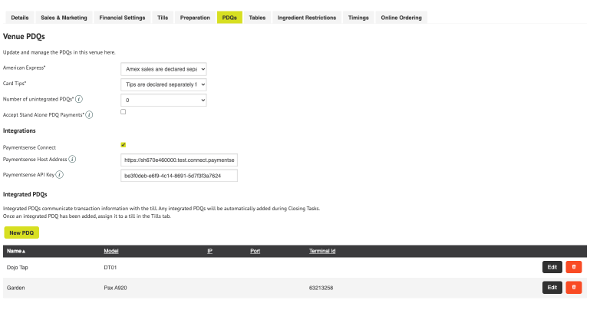
When you close the session, you will need to print totals (or Z Reports) from your unintegrated Card Machine. You will then have a space in your Cash Log within Closing Tasks to enter each Card Machine Z-Read total. You can have up to 25 Unintegrated Card Machines per venue. If you are using Unintegrated Card Machines, select how many you have from the dropdown.
Universal card machine settings
Administration > Venue Settings > Settings > PDQs
- You can choose here how American Express sales are declared, how Card Tips are declared.
- We normally advise that American Express sales and Card Tips are declared as a subset of sales totals if you take them.
For more information on Gratuities, please read here.
Using a card machine integration
Find the support article relevant to your hardware
Click on the correct payment provider logo, on the line that matches your card machines:
| Kobas Payments |
Dojo |
Payment Sense |
|
|
Pax A920 Pro
|
|
||
|
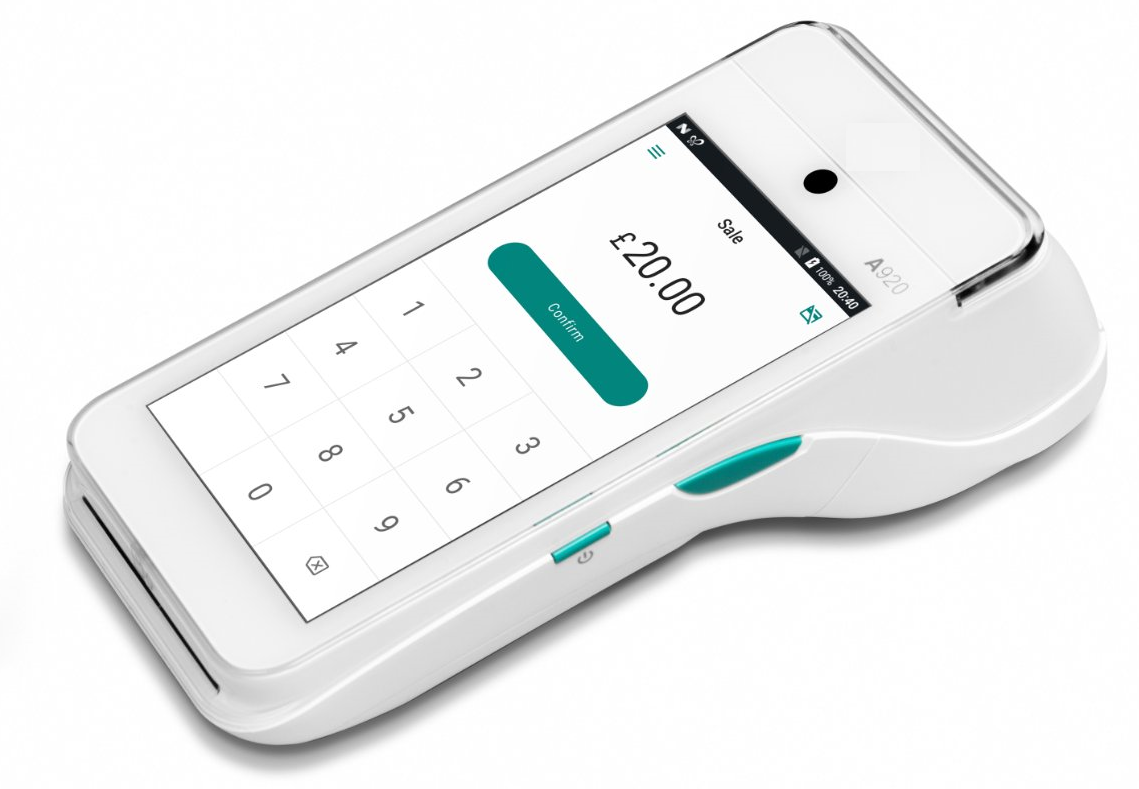
Pax A920
|
|
 |
|
|
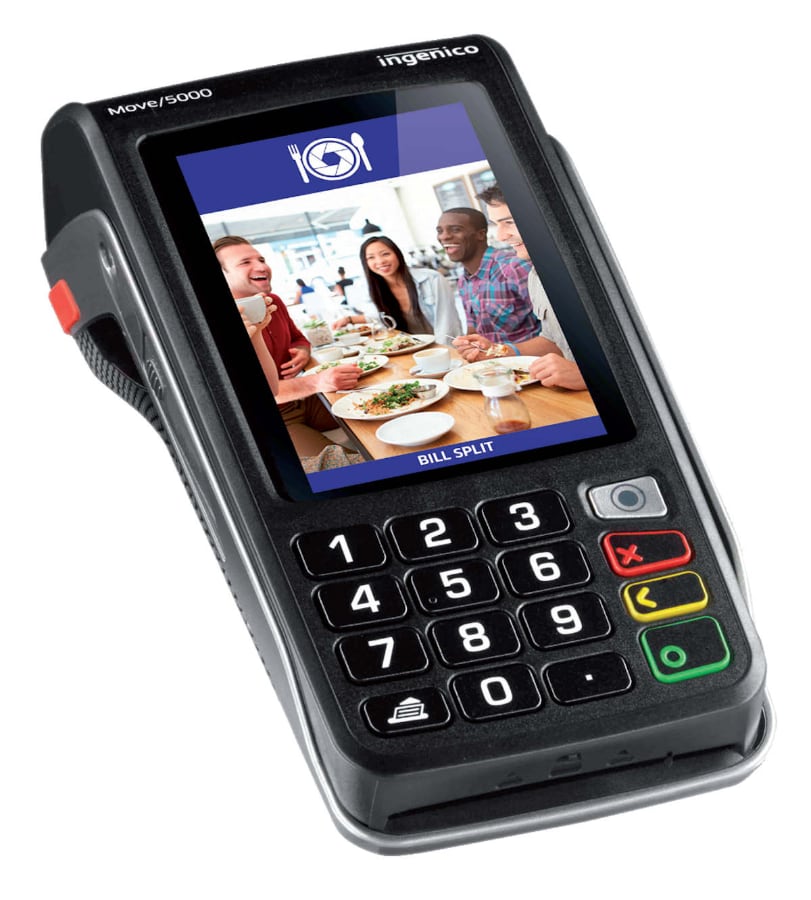
Ingenico Move 5000
|
|
 |

Troubleshooting
Please click here for troubleshooting advice